
How to setup an Out of Office message
Find out how to setup and send an automatic email using your free Hostinger email service to let people know when you’re away and when you’ll return
Step 1
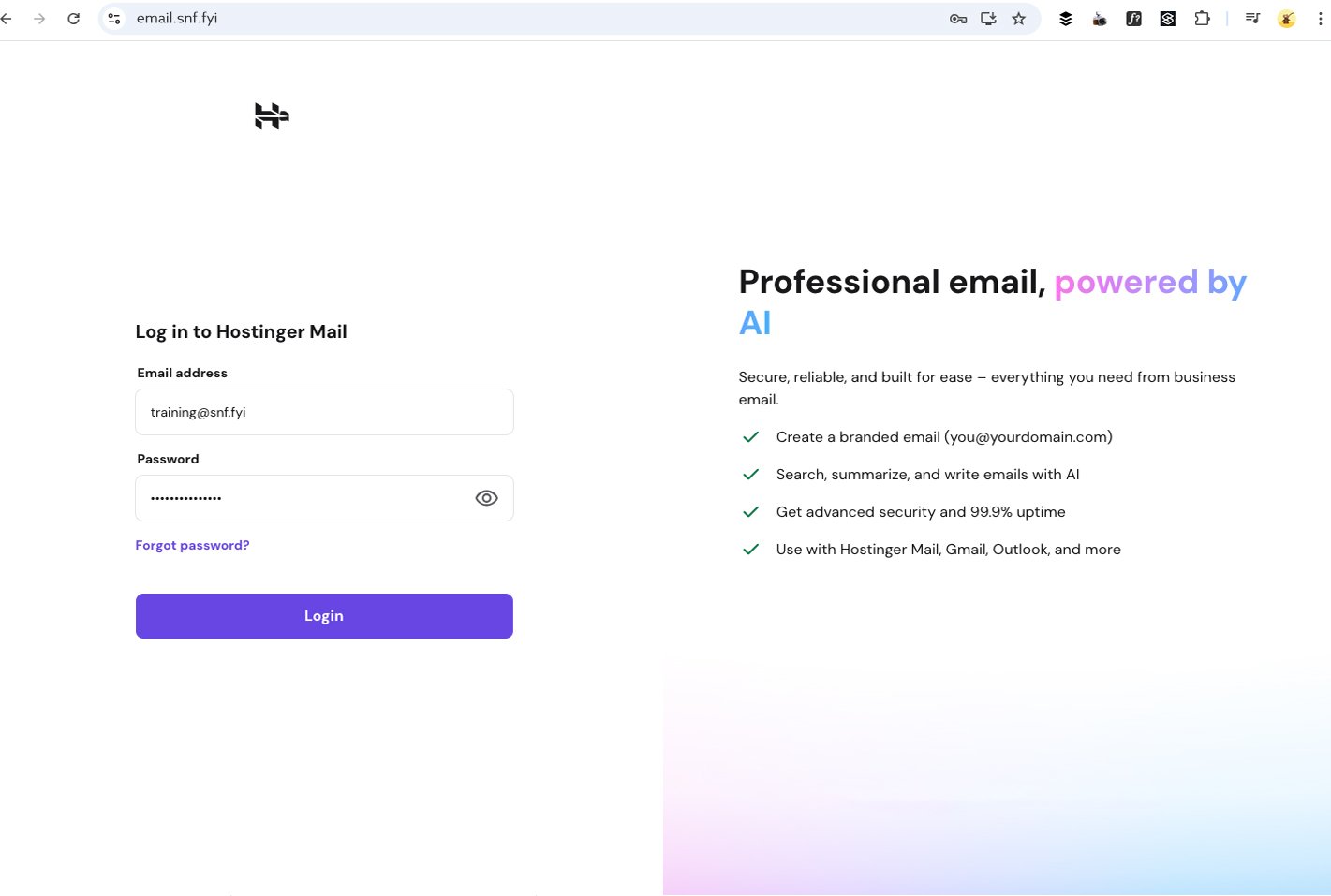
To set up your out-of-office message, log in to the web version of your email using your existing email address and password. You can access the email login page by typing email. before your website address in a web browser (for example, email.yourwebsite.com).
In the example below you will see the email login page for https://email.snf.fyi
Step 2
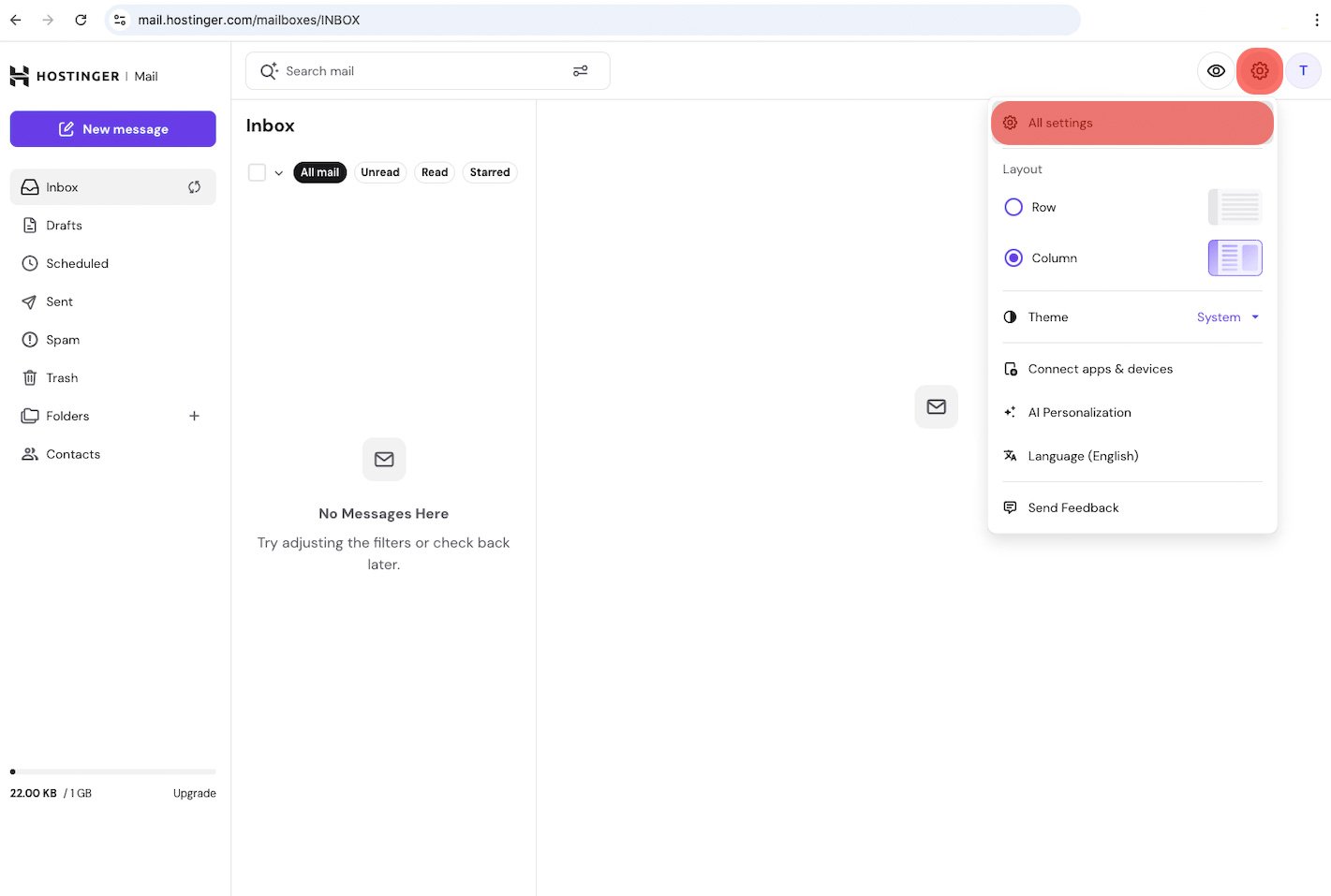
When you have logged in and can view your email select the gear icon then choose All settings as shown in the image below.
Step 3
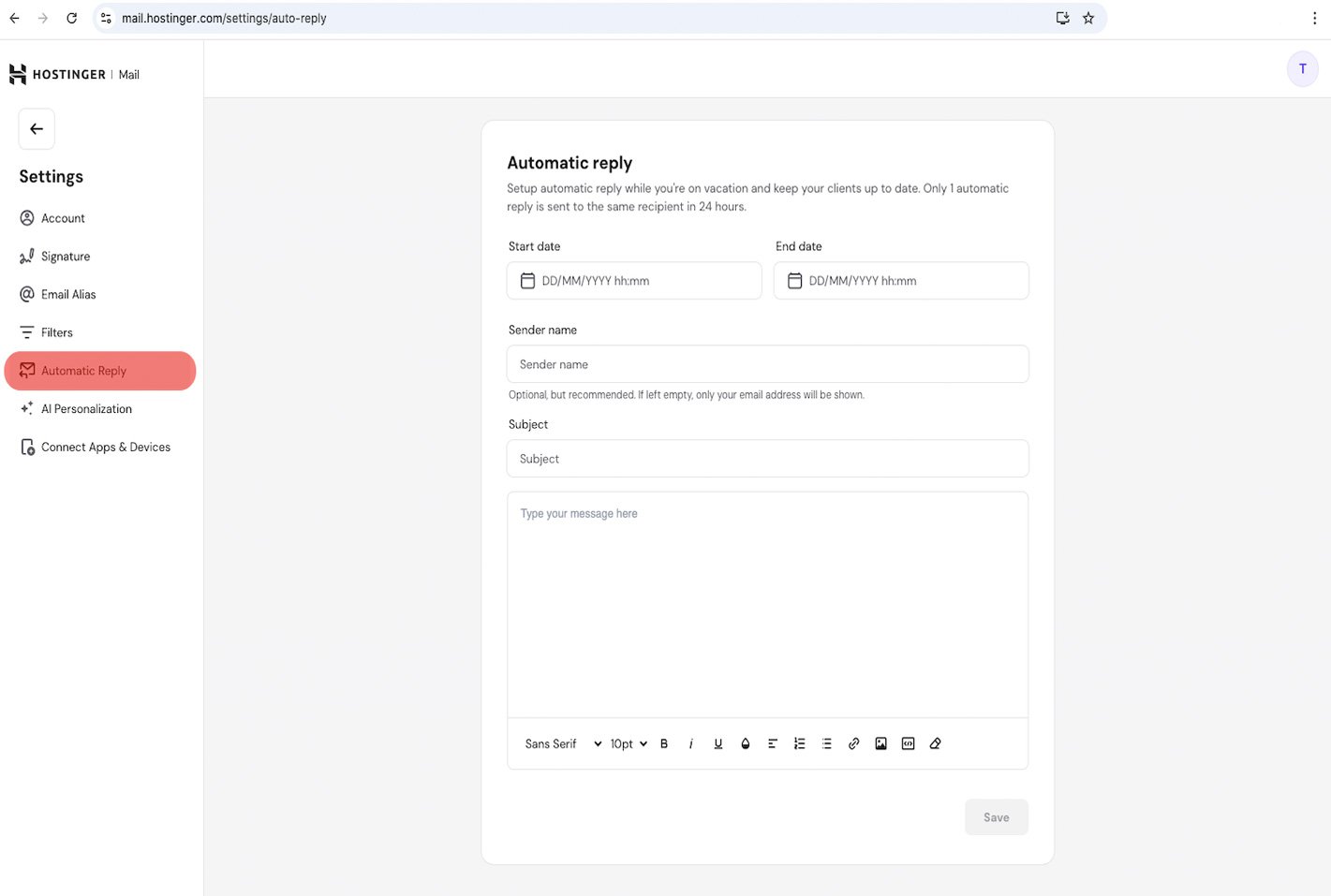
The following settings page will be displayed, using the menu on the left hand side select Automatic Reply
Step 4
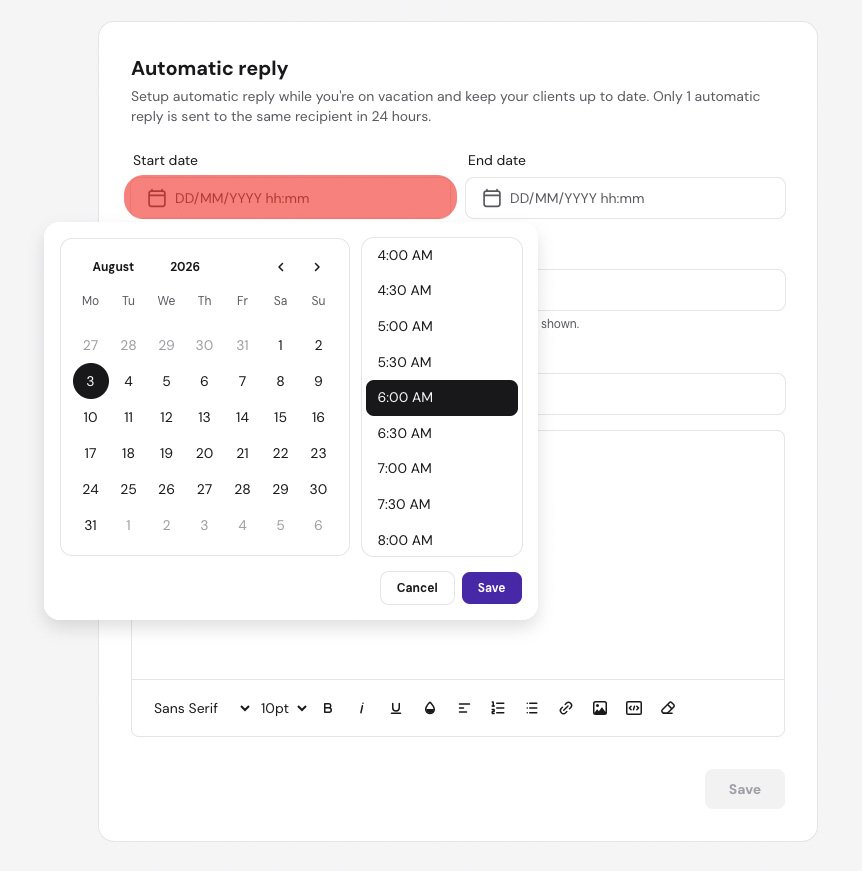
Add the date and time you would like your messages to begin sending. To do this, click the Start Date field highlighted below, then choose your preferred start date and time.
Step 5
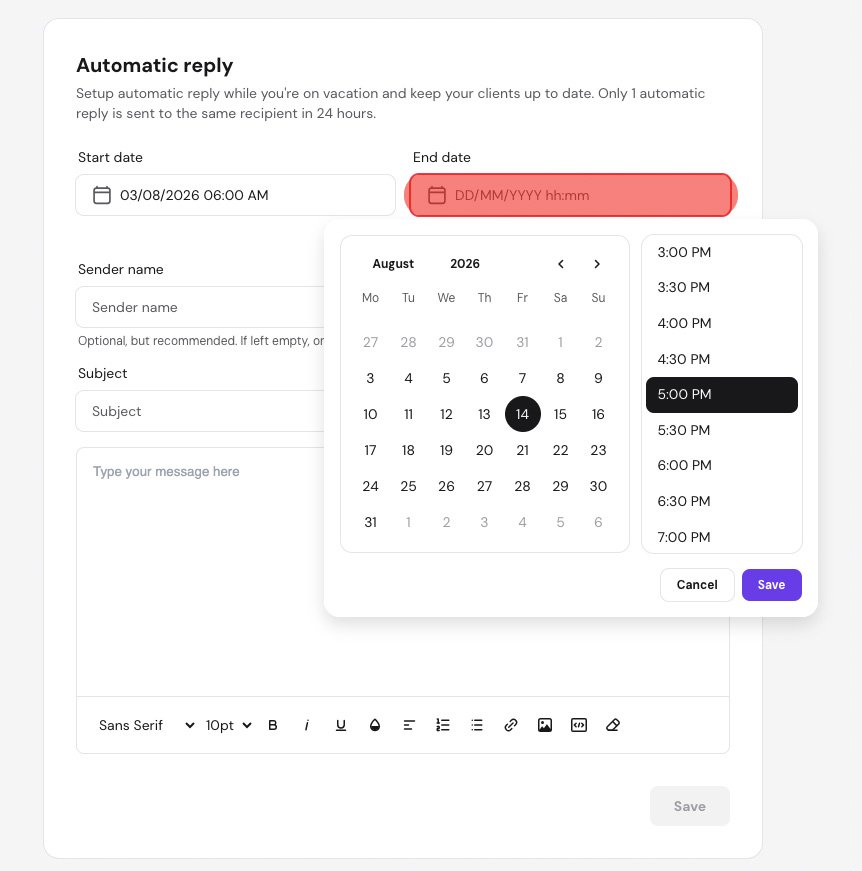
Select the date and time you would like your out-of-office message to stop sending. Click the End Date field, choose your preferred end date and time then click Save.
You're all set...
While you’re away, people who contact you will now receive your out-of-office message. Each person will receive the message only once per day, even if they send you multiple messages.